
A Cleaner Workspace and RouteCards That Are Easier to Share
Planning a hike involves more than drawing a line on a map. Waypoint order, bearings, walking pace, elevation, weather, and escape routes all help turn an idea into a useful plan. The latest RouteCard updates bring those details together in a more organised workspace, with improvements to viewing, sharing, and printed routecards.
A map-focused planning workspace
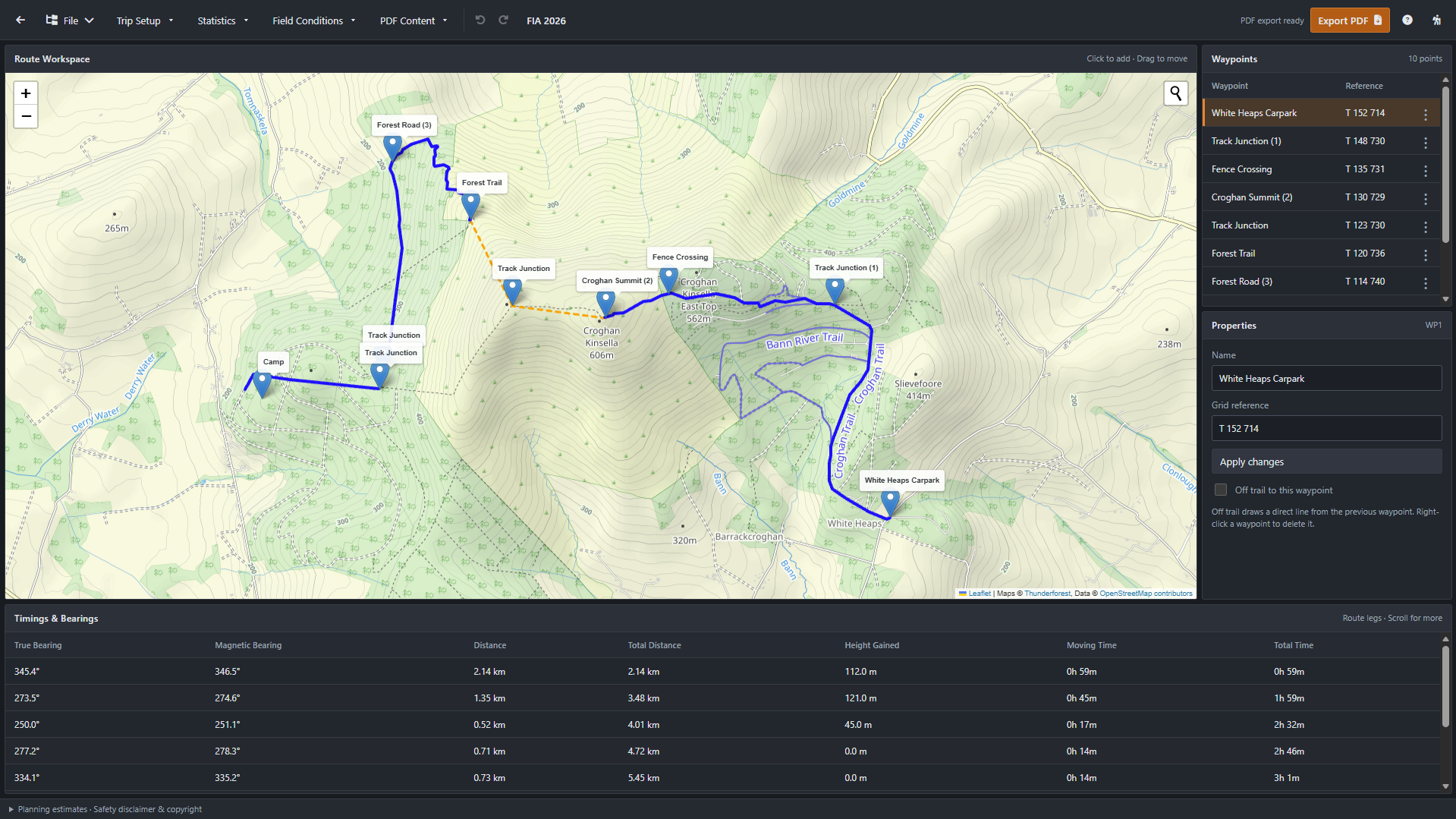
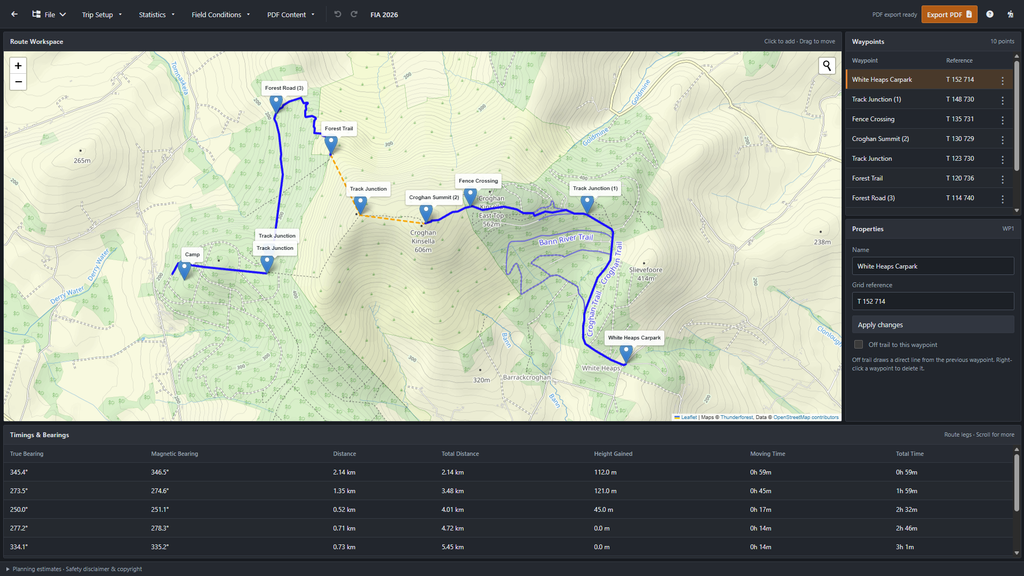
The planning page now takes inspiration from software such as Roblox Studio and Unreal Engine, using a compact layout with dedicated panels.
The map remains the main workspace. A waypoint list sits on the right, alongside a properties panel for the selected point. Timings and bearings stretch across the bottom, making it easier to review the route while keeping the map in view.
Trip Setup, Statistics, Field Conditions, and PDF Content have moved into dropdown menus in the top navigation. These settings remain accessible without taking up permanent space around the map.
The layout is designed to fit within the browser window, with longer lists and tables scrolling inside their own panels.
Easier waypoint management
Each waypoint now has a three-dot drag handle for changing its position in the route. This is useful when adjusting a day’s itinerary, changing the order of stops, or exploring a different sequence of checkpoints.
Reordering updates the route and recalculates the affected timings and bearings. Changes are saved and support undo. For keyboard users, a focused drag handle also supports moving a waypoint with the up and down arrow keys.
Selecting a waypoint opens its details in the Properties panel, where you can rename it, edit its grid reference, or mark the incoming leg as off trail. Off-trail legs use a direct line from the previous waypoint. Deleting a point remains available through the right-click menu.
Magnetic declination in Field Conditions
RouteCard now displays the average magnetic declination used across the route, both in Field Conditions and on the exported PDF.
Magnetic declination is the angle between true north and magnetic north. It connects the true bearing calculated from waypoint positions with the magnetic bearing used for compass navigation. RouteCard calculates magnetic bearing by subtracting the signed declination from the true bearing, then normalising the result to the 0–360° range.
Individual leg calculations use declination at their destination waypoint. The displayed route average provides a compact reference; the leg bearings retain their individual corrections. If some declination values are unavailable, the average uses the available values and is labelled accordingly.
A read-only routecard you can share
A new viewing page presents the routecard in the same workspace layout, with a clear Read only badge.
Anyone with the routecard’s viewing link can open it without logging in. They can explore the map, select waypoints, inspect saved properties, and review timings, bearings, notes, and field conditions. Editing, dragging, reordering, deleting, and saving changes are disabled in this view.
The viewer displays saved planning data, including saved weather and timings. This makes it useful for sharing a prepared plan with a walking group, while keeping editing and saving restricted to the owner.
Printed routecards with a direct connection to the online plan
Each PDF export now generates a QR code linking to the read-only view of that specific routecard.
The code uses RouteCard’s orange colour and includes the RouteCard logo in its centre. It is generated locally during export, so producing it does not depend on an external QR-code service.
To accommodate the centre logo, the code uses high error correction, a small white backing, and a 30 mm printed size. Automated scan tests successfully decoded it at raster sizes equivalent to approximately 150, 300, and 600 dpi.
The PDF’s text remains plain, without clickable links, reflecting its primary purpose as a printed document. The QR code gives people carrying the paper routecard a convenient way to open the saved online plan when connectivity is available.
An acknowledgement before export
Before generating a PDF, RouteCard now presents a popup explaining the planning limitations and liability disclaimer. Users must select Agree & Export PDF to continue; Cancel or Escape stops the export.
It provides a reminder that a routecard contains planning information and estimates. Route choices, timings, weather, and field conditions still need to be checked before and during a hike.
Together, these updates make RouteCard easier to organise on screen, share with a group, and carry on paper—with clearer access to the details behind the plan.
Leave a Reply